SKILL.md.
You submit from the Developer Console while signed in. Review runs before anything is public. You publish only after it passes, and you can take it down later without deleting the listing.
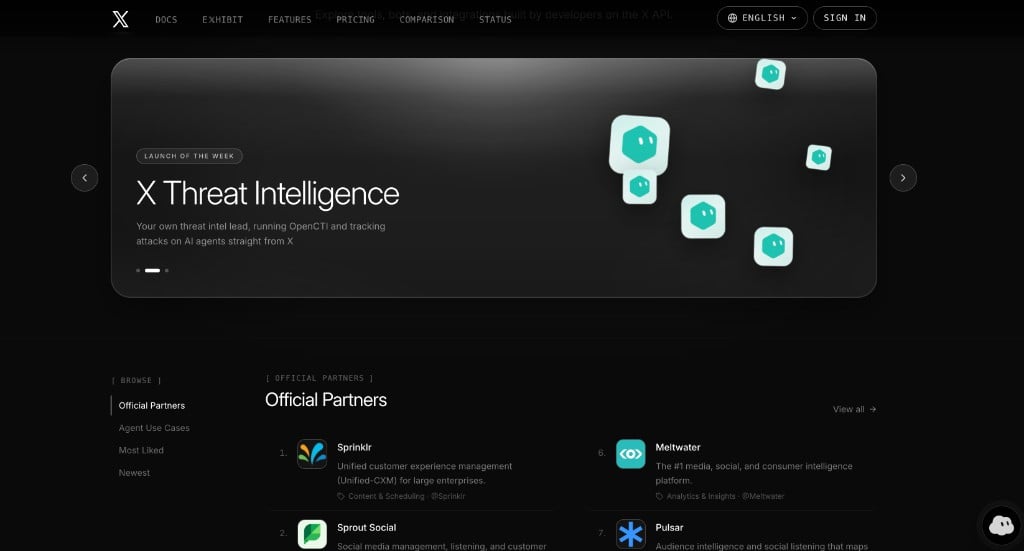
What belongs on the Exhibit
List a real product that uses the X API.App
A product with its own website. The site is the thing people open from the listing.
Agent use case
A Grok Bot template, a SKILL.md, or both, that does something useful with X. A website is optional.
What does not belong
Review rejects listings that are not a real X API product, and listings that pretend to be someone else.- Unrelated websites, link dumps, empty wrappers, and pages that are still a placeholder.
- The default Console app name (your account id plus username) or the default app icon. Pick a product name and upload your own icon.
- The X logo, the Grok mark, or another company’s logo, unless the signed-in account is that brand. @X, @xai, @XDevelopers, and @grok may use X, Grok, and xAI marks. Saying the product is “built on the X API” does not authorize those logos.
- Spam, scams, adult content, hate, or harassment, in the name, the copy, the screenshots, or the website.
- A second listing for an app that already has one.
Submit a listing
Open the app you want to showcase in the Developer Console and start an Exhibit listing. The app has to belong to the account you are signed in with. The developer name and handle on the listing come from that X account. You do not type them in.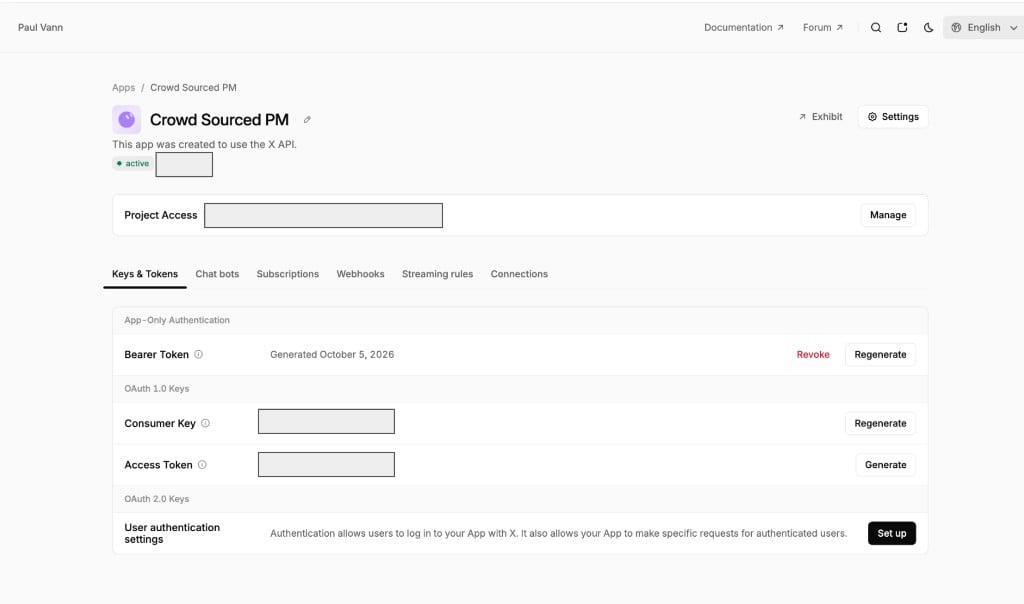
1
Choose the listing type
Choose App or Agent Use Case. The type locks after the first submit.An app needs a website. An agent use case needs a Grok Bot template URL, a skill URL, or both. A website on an agent use case is optional.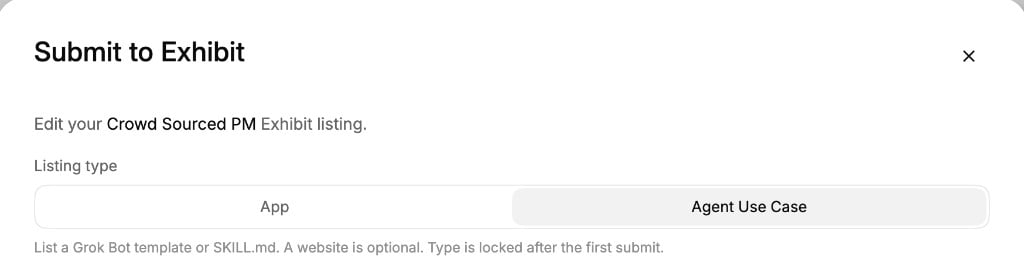
2
Describe the product
Fill in the details. All of these are required: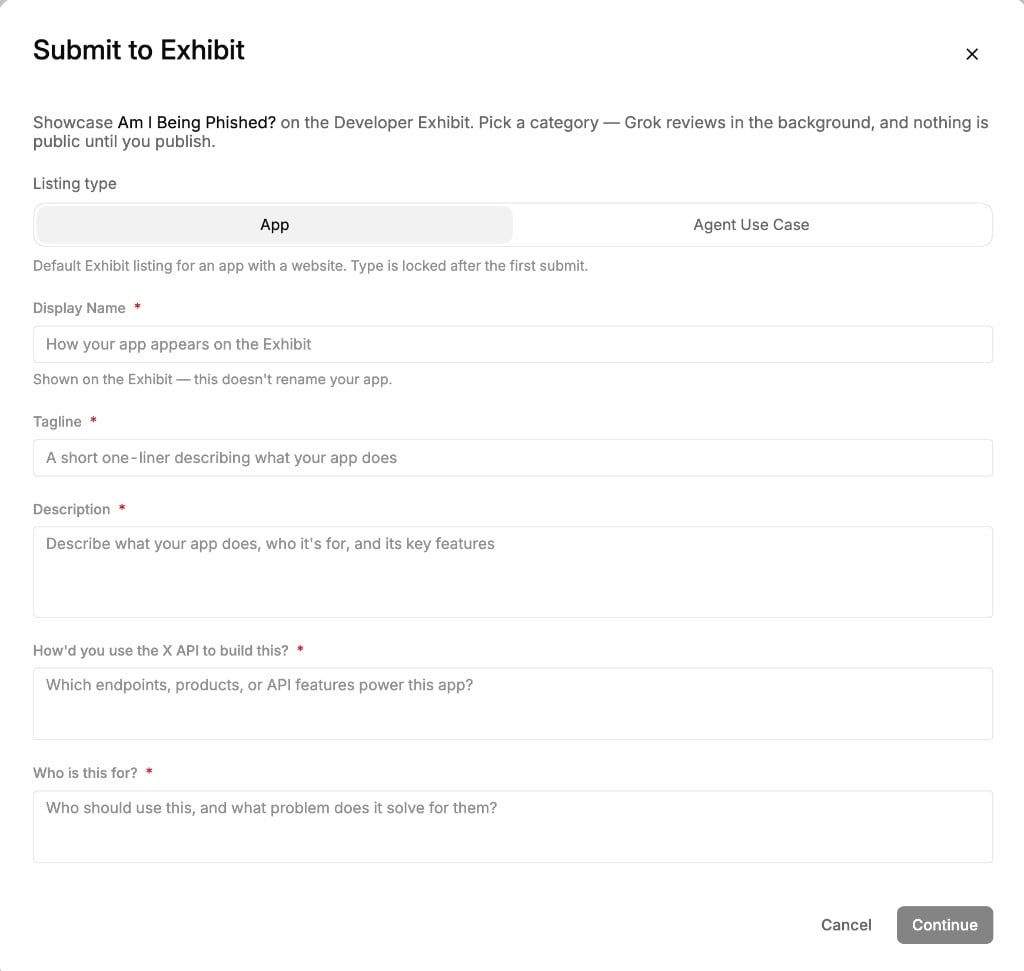
- Display name. How the app appears on the Exhibit. This does not rename the Console app.
- Tagline. One line on what it does.
- Description. What the product is and how it uses the X API. More than a sentence. Aim for a real explanation, not a slogan.
- How it was built. How you used the X API. At least a short paragraph.
- Who it is for. The audience. Same bar as how it was built.
- Category. One of the six categories above.
- Website. Required for an app. Use
https://.
3
Add a logo and screenshots
Upload a custom logo and at least one screenshot. You can add up to five screenshots. A video URL is optional.Screenshots have to show this product. A stock page, an empty frame, or another brand’s product fails.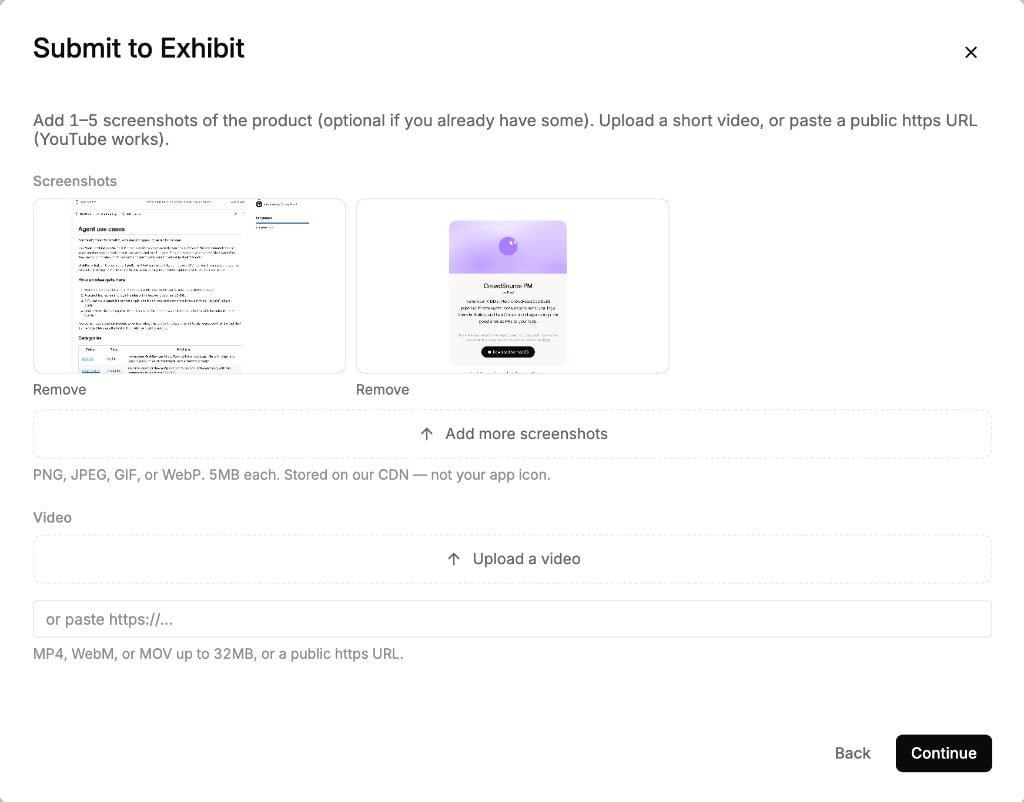
4
Preview and submit
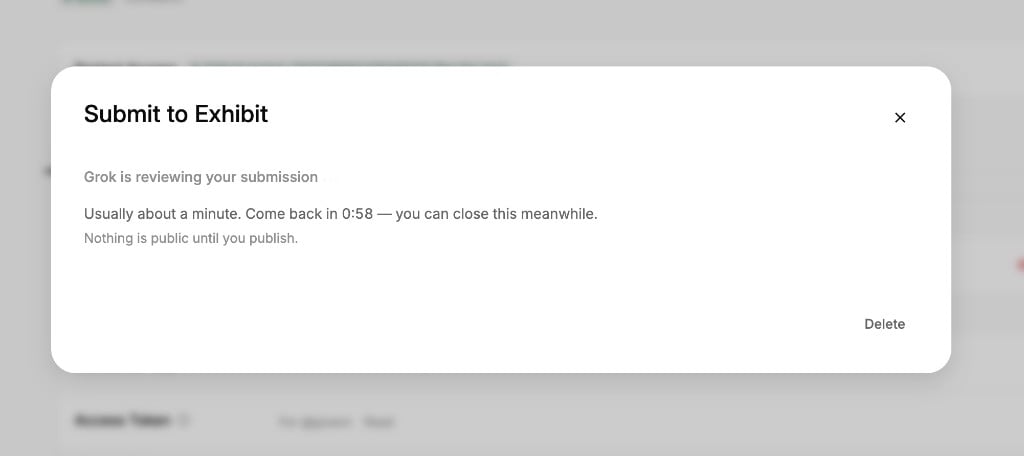
Check the preview, then submit. Nothing is public yet. Grok reviews the submission in the background. The Console asks you to come back in about a minute.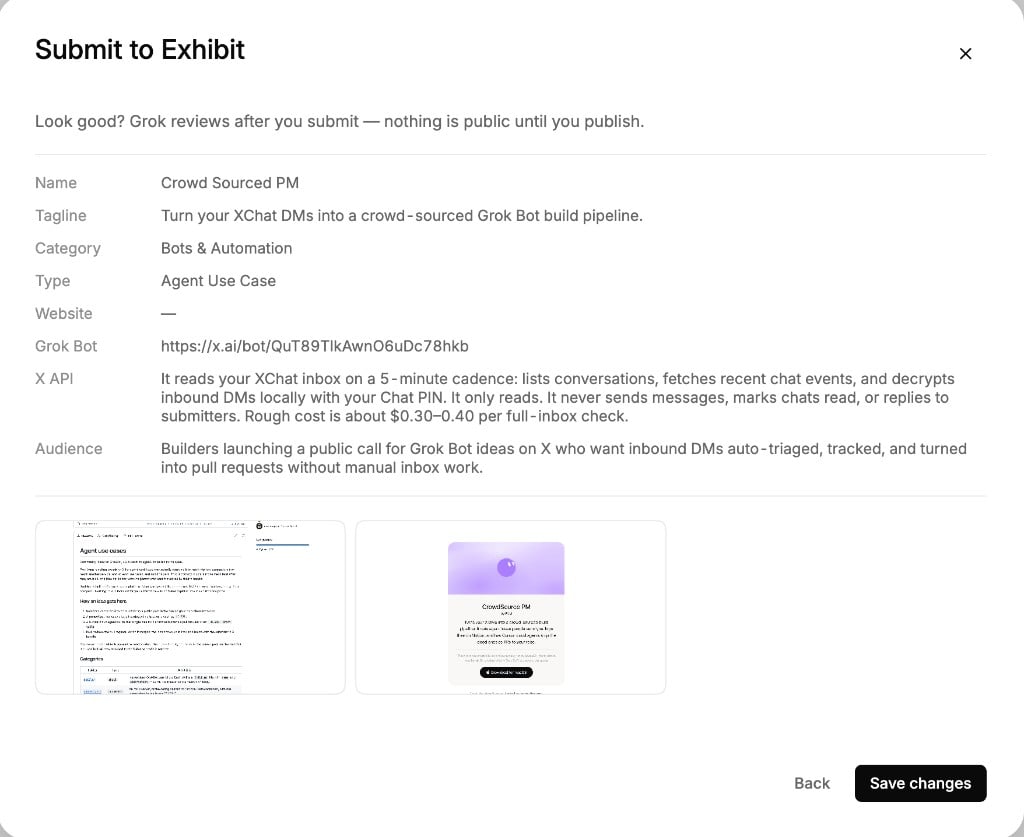
5
Publish with a launch post
When review passes, the Console asks for the link to the X post that launches the app. Paste a status URL from the same account you are signed in as, in the form 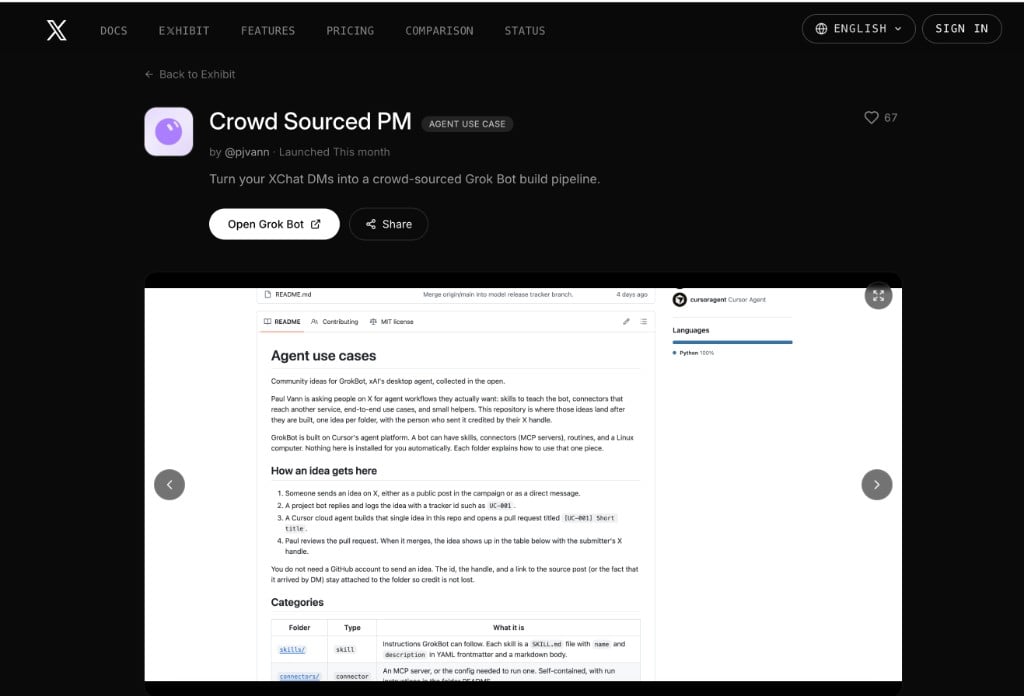
https://x.com/you/status/…. A post from any other account is rejected. Publish after the link is accepted.The listing goes live at https://developer.x.com/exhibit/your-slug.If review does not pass
If the submission does not pass, the Console shows a short reason. Edit the listing and resubmit.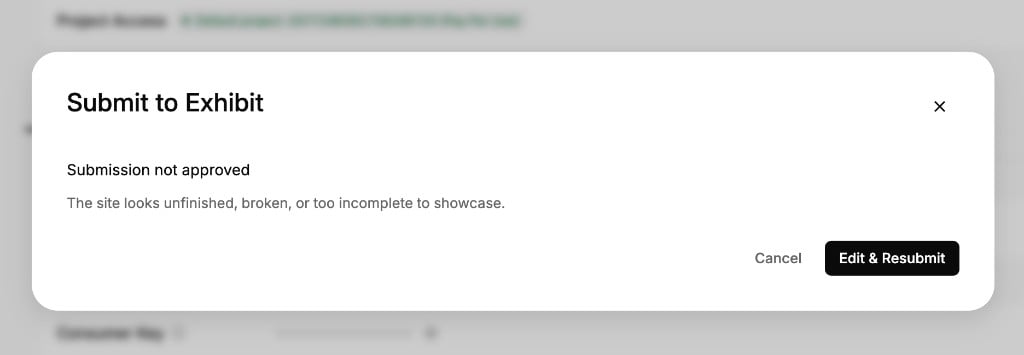
Editing a live listing, or unpublishing and republishing, sends it through review again. It does not go live on the old approval.
After it is live
Unpublish takes the app off the Exhibit. The listing stays in the Console, so you can edit it and republish. Republish is reviewed again. You can delete a listing you no longer want. That is separate from unpublish.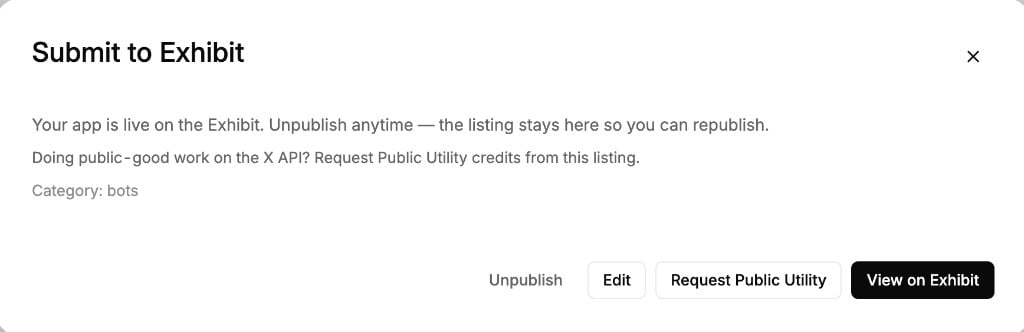
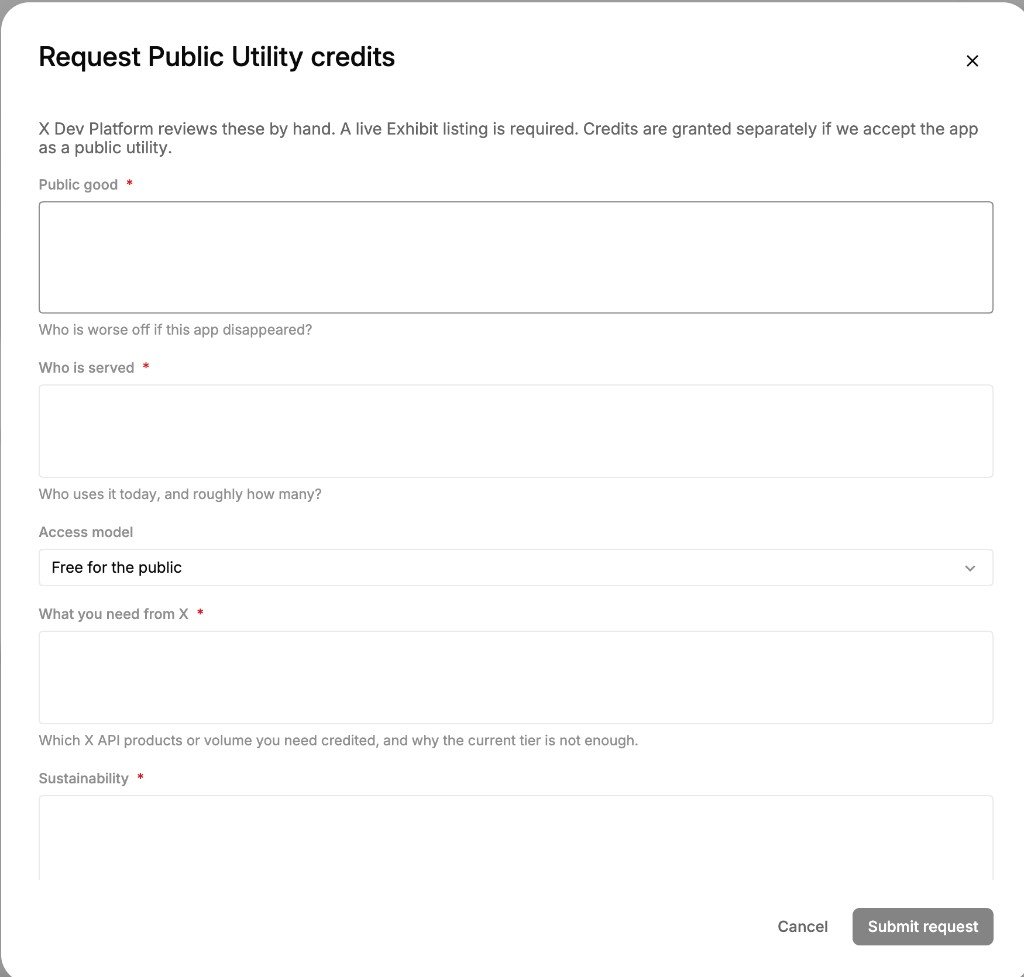
Public Utility
Public Utility is a credit program for public-good work on the X API. It is not a way to skip review, and you cannot mark your own listing as a utility. Once the app is live, request it from the listing. The request goes to the X Dev Platform team. They decide whether it belongs on the Public Utility shelf. Until they approve it, the app stays a normal listing.